Skip to Main Content
Brandeis Moodle Guides

Moodle Resources for Faculty

Re-Sizing Images for Windows Users: Windows Photos

  1. Navigate to the image you would like to resize, right click it, scroll down to Open with and click Photos.
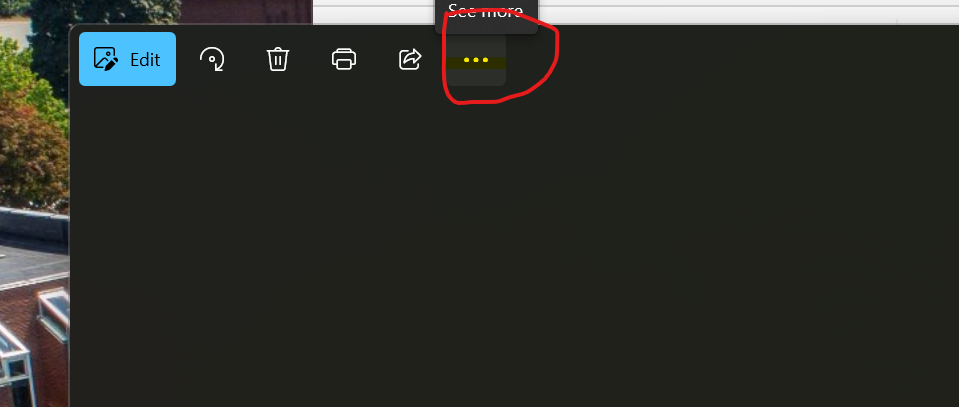
  2. Click on the three (...) located in the upper left of the photo window.

Access to settings for editing in Photos app

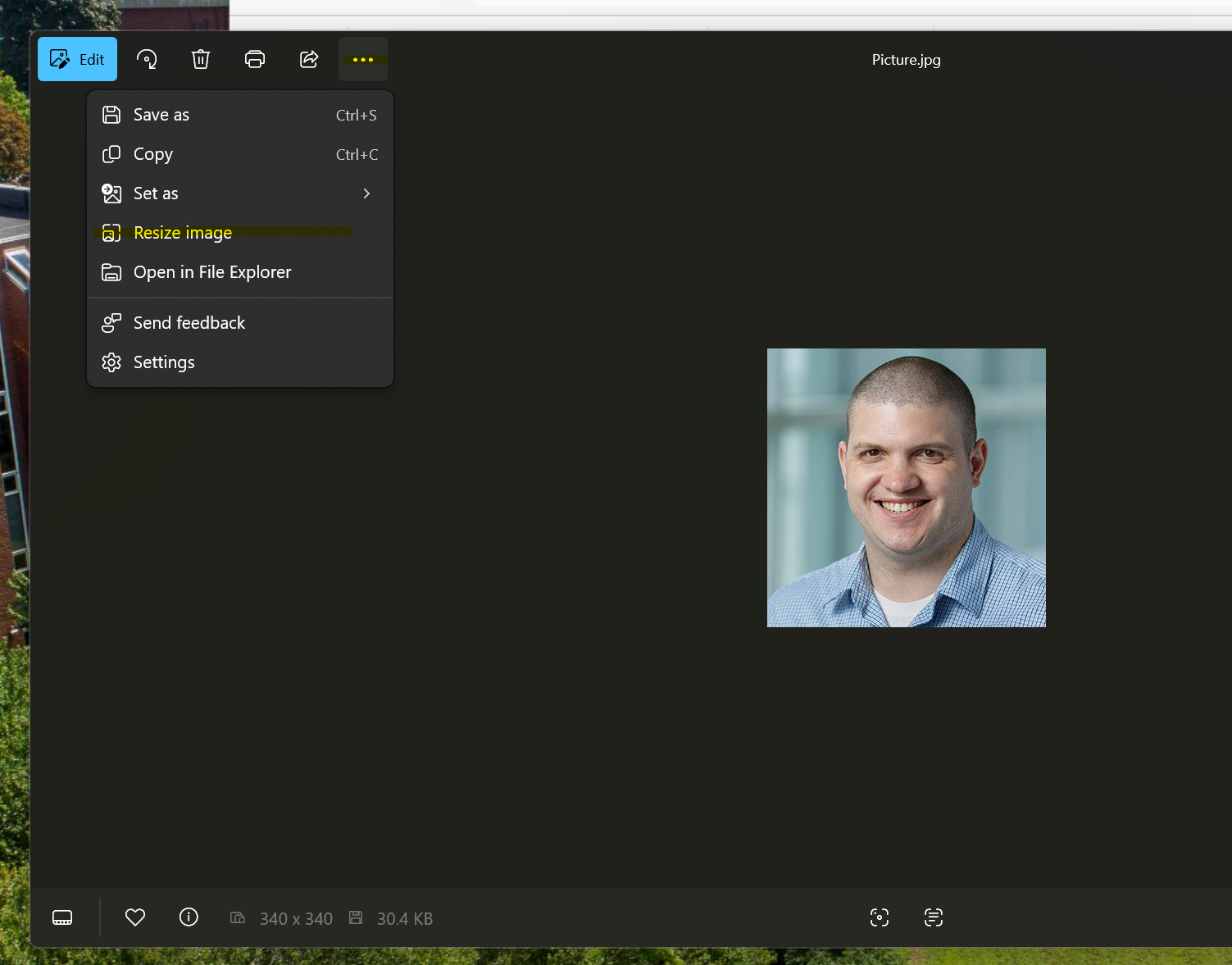
  1. Click Resize.
    Screenshot showing the resize image setting in the Photos app.
     
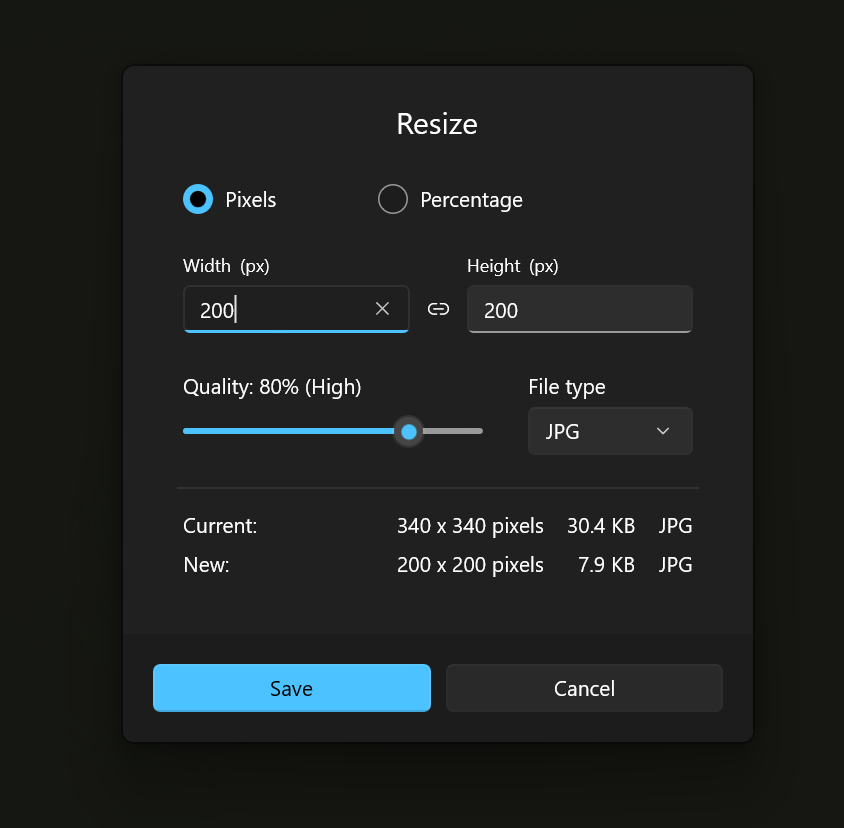
  2. Size your picture by either editing the pixels or percentage. For pixels. Enter 200x200


Screenshot showing the pixel resize settings in Photos.

  1. Once you are done, click on save, you can choose to overwrite the old picture or create a new save file.

Re-Sizing Images for Mac Users: Preview


How to resize an image with Preview


  1. Navigate to the image you would like to resize, double click on it to open it in Preview. If this does not open automatically, right click the picture and select Open with and click Preview
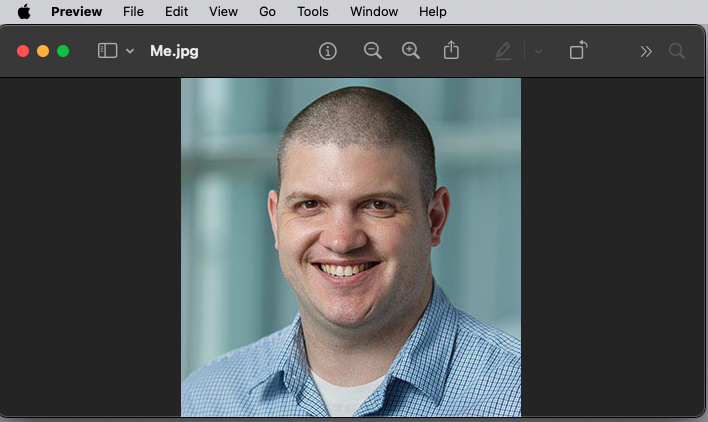
Screenshot showing how to access Preview app on a Mac.


  1. Click the Tools button in the top menu bar and click Adjust Size
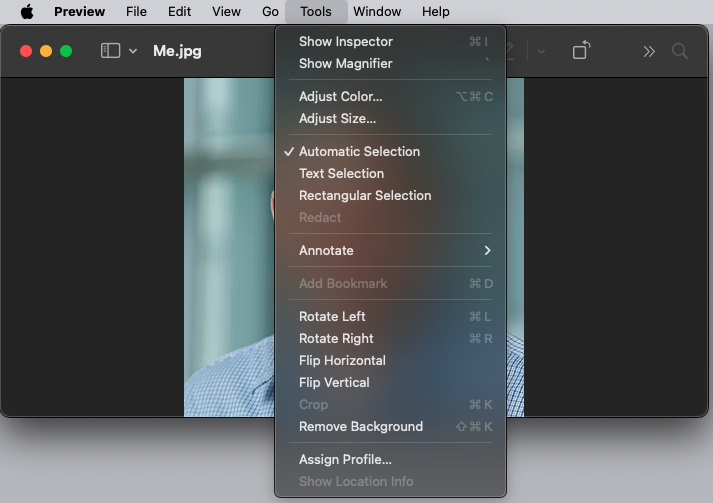
    Screenshot showing how to access the Tools menu to adjust an images size.
     
  2. Change your size from what it currently is to 200x200
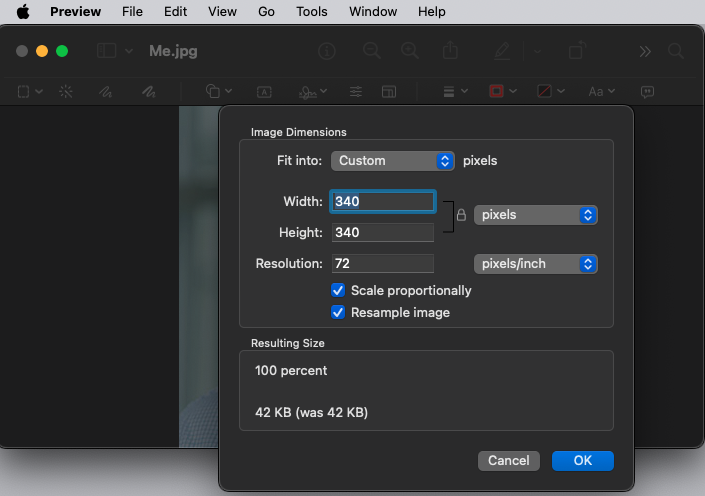
    Screenshot showing how to adjust image size in Preview app.


Click OK to apply your changes
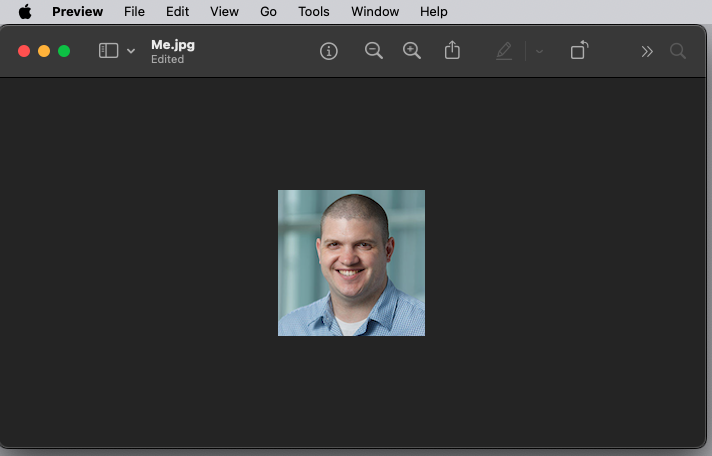
Screenshot showing image after it has been adjusted for size in Preview.